UI
We only have the 1 kind of troop, but let’s put it into the UI.
- Add a UI image in the top-left corner
- Use “Assets/UI/Character.png”
- Place a UI text counter next to it
- Use TextMeshPro
Playfield.cs
When the user touches the playfield, we want to deploy the selected troops.
- Remove the character from the scene
- The one that we’ve been using to test up until now
- Add the following public variables to Playfield
public GameObject m_characterPrefabpublic int m_characterMax = 20public float m_spawnDelay = 0.25fpublic TextMeshProUGUI m_spawnCounter
- Fill in
m_characterPrefabwith “Character.prefab” - Fill in
m_spawnCounterwith the UI text counter you created above - In
Playfield.Start()- Change the text of
m_spawnCounterto indicate how many troops are left
- Change the text of
- In
Playfield.Update()- Look for mouse button (finger held down)
- Convert the screen position of mouse/finger to a position on the ground
- If that position is on the ground, spawn a troop at that location
- Reduce the count of remaining troops
- And update the UI counter
- When all troops have been deployed, do not allow the player to deploy any more
- Limit the troops to once every
m_spawnDelayseconds
You can depoly your troops by dragging your finger around the screen. 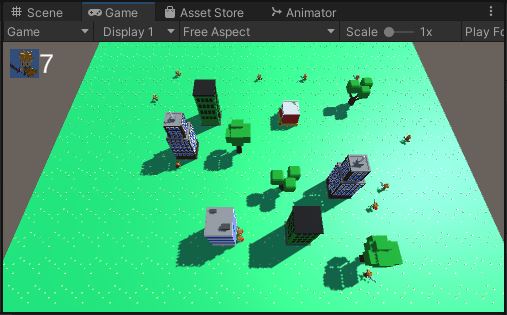
Commit and push before we do the “Choose Your Path”