Let’s start by making the character simply walk around.
Character Controller
- Put a CharacterController (standard Unity CharacterController) on the “Player”
- Adjust the Character’s Capsule to more-or-less match the graphics
- Be sure that the bottom of the capsule is above the ground a little
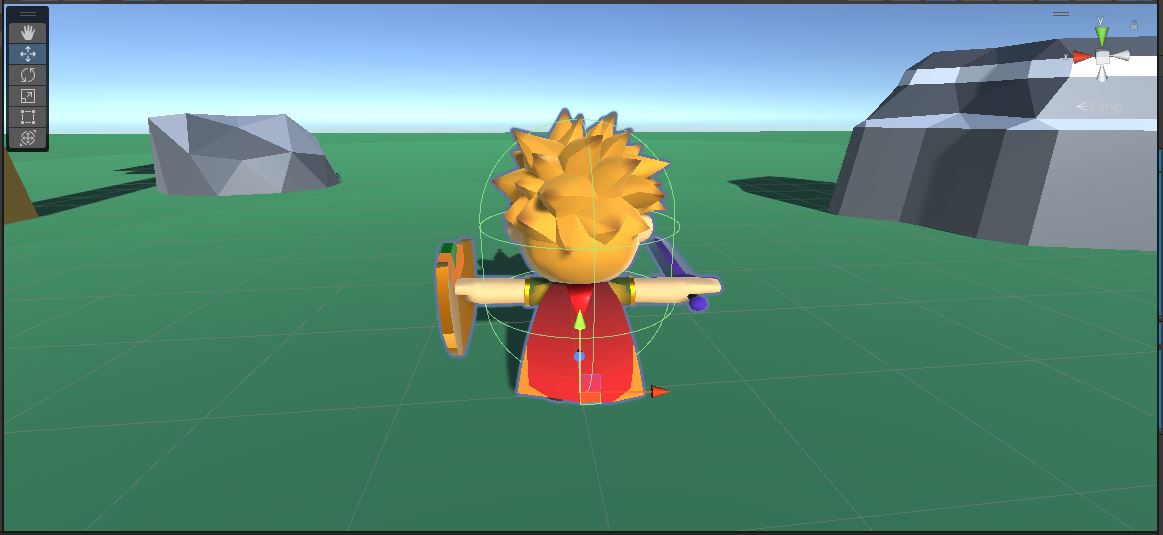
- Be sure that the bottom of the capsule is above the ground a little
Character.cs
Walking Forward
- Create a new script called “Character.cs” and attach one to the “Player”
- Give it the following public variables:
public float m_walkSpeed = 4.0f; public float m_turnSpeed = 360.0f; // degrees per second - In your
Start(), get the attached CharacterController and store that in a member variable - In
Update(), let’s start by just making the character move forward - Call
CharacterController.SimpleMove()to move the player forward at a rate ofm_walkSpeedunits per secondCharacterController.SimpleMove()automatically includesTime.deltaTimeso you don’t need to
When you Play In Editor, you should see the character moving forward at a steady rate.
Basic Input
Let’s create a structure to abstract the kind of input that our character can take.
There are many different styles of character control.
Our goal here is to emulate Fortnite.
In Fortnite, the player always faces in the same direction as the camera, and they can move in any direction (left/right/forward/back)
However, we want to use the same Character base class for NPCs, and they will have freedom to face in any direction.
- Within the Character class, create a public CharInput class
- Let’s add a Vector3 for the movement direction
- This is the input, so we’ll be setting the scale of this input to a range of -1 to 1
(1 means full-speed forwards/right while -1 means full-speed backwards/left) - To make things versatile and easy for NPCs, the movement will be specified in world coordinates
- move.z means to move in the world z-axis regardless of the character or the camera’s current angle
- We won’t be using the Y coordinate, but the
Vector3will make transforms easier
- This is the input, so we’ll be setting the scale of this input to a range of -1 to 1
- The player turns to match the camera, and the NPCs ultimately will turn to face any angle
- Add a float for the facing direction as an angle
- Add an instance of CharInput to your Character class
- In
Character.Update(), read in the keyboard and use that to fill in the CharInput- The facing angle is easy… just match the forward direction from
Camera.main- You can use
Camera.main.transform.localEulerAngles.y - Or use
atan2along withCamera.main.transform.forward
- You can use
- For the movement vector, read keys W, A, S, & D
- Use
Input.GetKey() - Don’t forget to allow for diagonal movement (W + A for example)
- Use
- Keyboard input is camera-relative. We need to convert into world-space
- The camera’s forward direction in world space is
Camera.main.transform.forward - Similarly, the camera’s right direction is
Camera.main.transform.right - You’ll want to normalize these in case the camera is tilted at all
- The camera’s forward direction in world space is
- The facing angle is easy… just match the forward direction from
Movement
Now that we have some input, we need to move the character around.
- In
Character.Update(), change theCharacterController.SimpleMove()to move based on the movement from the CharInput- The maximum speed for the character is given by
m_walkSpeed Time.deltaTimeis already included withSimpleMove()
- The maximum speed for the character is given by
- Also rotate your
transformto face in the direction given by the facing angle variable in CharInput- The maximum turn rate is specified as
m_turnSpeed - Don’t forget
Time.deltaTime. It isn’t automatic here since you’re doing it yourself - The math to turn towards an angle with a maximum speed isn’t trivial. If you have trouble with it, we can go over this in-class.
- The maximum turn rate is specified as
You should be able to move your character around now.
Notice that the trees and rocks have collisions on them, and you can’t walk through them.
There aren’t any camera controls yet, but you can use the editor to turn the camera and watch the character turn with it. 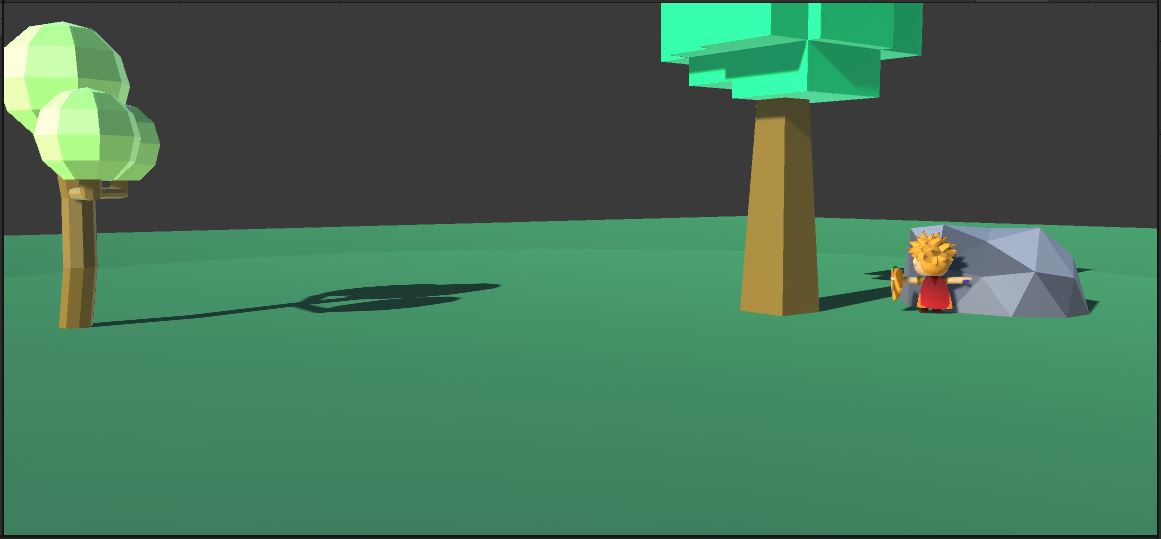
This is a good spot to commit and push before we move on to the camera controls.