Now that we can move the player, let’s have the camera keep up.
FollowCamera.cs
- Create a new script “FollowCamera.cs” and attach one to the “MainCamera”
- Give it the following public variables:
public GameObject m_target; public Vector3 m_targetOffset; - Assign
m_targetto be the “Player” - Set
m_targetOffsetto (0.0, 1.0, 0.0)- The origin of the player is at its feet, but we don’t want to look at its feet
- We want to look at a point on the player specified by
m_targetOffset - We have set that to be 1 unit above the player’s feet
Follow the Player
The first step is just to follow the player around as it moves.
We will be using a simple polar coordinate system to express how the camera should orbit around the player
- Add the following member variables (polar coordinates):
float m_distanceCurrent; float m_azimuth; float m_elevation; - In
FollowCamera.Start()calculate the position of the target- m_targetOffset transformed from player-space into world-space
- Based on the starting position of the camera and the position of the target,
- Calculate the
m_distanceCurrent - Calculate the
m_azimuth - Calculate the
m_elevation - This is the Cartesian to Polar conversion
- Calculate the
- In
FollowCamera.LateUpdate()calculate the position of the target again- The player may have moved
- Calculate the new location of the camera
- Based on
m_distanceCurrent,m_azimuth,m_elevation, and the updated target position - This is the Polar to Cartesian conversion
- Based on
- Use
Transform.LookAt()to look at the updated target position
We need to make sure the player moves before the camera, so we’ll update the camera in LateUpdate().
Now if you launch the game, you should be able to walk around, and the camera will move with you.
There is no camera control yet.
Camera Input
Like with the Character we need some player-input for the camera.
In this case, there’s no need to worry about NPCs wanting to use it.
- Add the following public variables to your FollowCamera:
public float m_panSpeed = 180.0f; // degrees per second public float m_tiltSpeed = 180.0f; // degrees per second public float m_tiltMax = 0.0f; // degrees public float m_tiltMin = -60.0f; // degrees - Create a class inside FollowCamera called CamInput
- We want controls for azimuth (left/right) and elevation (up/down)
- Make them both floats, and we can assume they will be in a range of -1 to 1
- Create an instance of your CamInput class as a member variable
- In
FollowCamera.Update(), read the keyboard, and use that to set these inputs- Let’s use the arrow keys (
KeyCode.LeftArrow,KeyCode.RightArrow,KeyCode.UpArrow, andKeyCode.DownArrow)
- Let’s use the arrow keys (
I am defining the camera’s tilt as positive looking up and negative looking down.
That’s why I have a range of -60 to 0.
-60 degrees would mean the camera is up in the air tilting down by 60 degrees.
The limit of 0 degress is when the camera is at the same level as the target looking parallel to it.
Camera Movement
Now that we have some input, we need to make the camera move in response.
- In
FollowCamera.LateUpdate(), read the CamInput data and update them_azimuthandm_elevationm_azimuth- move at a rate of
m_panSpeed(don’t forgetTime.deltaTime) - freely wrap around in a range of -180 to 180 degrees
- move at a rate of
m_elevation- move at a rate of
m_tiltSpeed(don’t forgetTime.deltaTime) - clamp to a range of
m_tiltMintom_tiltMax
- move at a rate of
- Be sure you update these before you calculate the new position of the camera as described above
You can now pan and tilt the camera while you run around 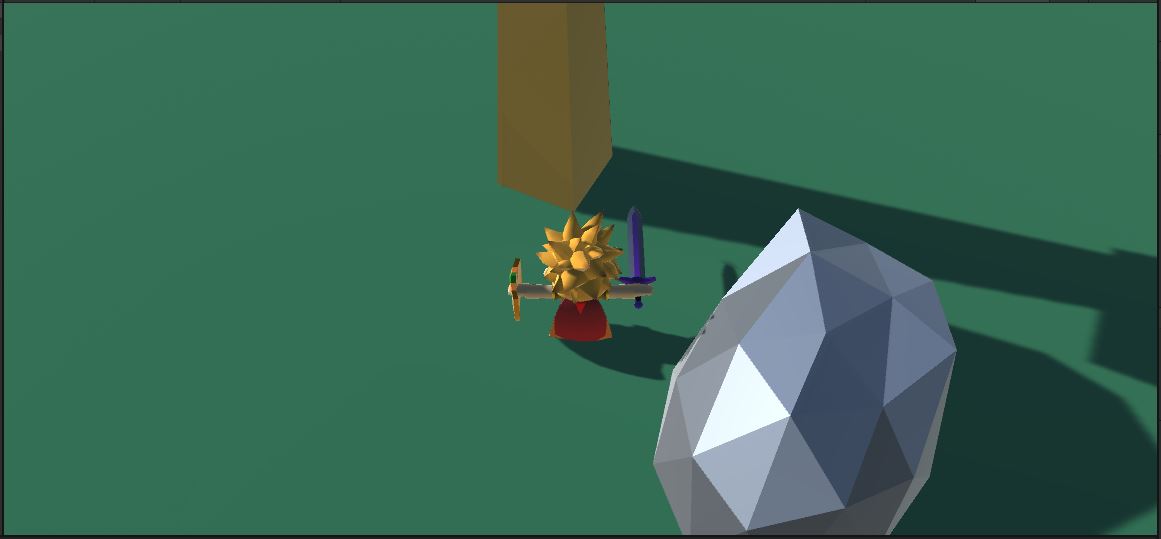
Commit and push before the next step