MissileInput
Open up the “FireControl.cs” Script.
Like we’ve done before, let’s come up with a new class to describe the player’s input in terms of gameplay - rather than in terms of the physical input.
- Inside your FireControl class, create a new public class called MissileInput.
- We are creating a class inside another class. This is a good way to organize
- The “inputs” for our game will be:
- The location (a
Vector3) of where the player is aiming- The player “aims” by holding a finger on the screen, and we’ll need the position of that to put a crosshair there
- The location (a
Vector3) of where the player fires a missile- The player “fires” a missile by lifting their finger from the screen, and we’ll need to know that position so we can fire a missile towards that location
- The location (a
- Inside your MissileInput class:
- Both the “inputs” are one for each finger, so you’ll want 2
List<Vector3>s- A
List<Vector3>for the aiming positions (one for each finger that’s touching the screen) - A
List<Vector3>for the firing positions (one for each finger that lifted on this frame)
- A
- You’ll want to initialize these to empty
List<Vector3>s to start off
- Both the “inputs” are one for each finger, so you’ll want 2
ReadInput
- Create a new function
MissileInput ReadInput().- A function called ReadInput() that returns a
MissileInput.
- A function called ReadInput() that returns a
- Create a new instance of a MissileInput as a local variable inside the function
Working with touch-based inputs requires the phone.
Let’s start by emulating our inputs via the mouse first.
- If either
Input.GetMouseButtonDown(0)orInput.GetMouseButton(0)returnstrue, add an element to yourList<>for player aiming- Get the screen coordinates of the mouse with
Input.mousePosition - I’ve provided a function
Utility.ScreenToWorldPos()to convert that into world coordinates - It is this world position that you should record in your MissileInput.
- Get the screen coordinates of the mouse with
- If
Input.GetMouseButtonUp(0)returnstrue, that means the player has released the mouse button, so we should fire a missile- Get the screen coordinates of the mouse with
Input.mousePosition - Use the same function
Utility.ScreenToWorldPos()to convert that into world coordinates
- Get the screen coordinates of the mouse with
- Return your MissileInput
Update
Head up to the Update() function
    void Update()
    {
        if (false == m_isPaused)
        {
            // TODO Read the input

            // TODO Fire Missiles

            // TODO Make enough target reticles
            // Delete any extra target reticles

            // TODO Update the position of all the target reticles
        }

        // keys
        if (Input.GetKeyDown(KeyCode.Escape))
        {   // this doubles as the option key in the android navigation bar
            SetPause(!m_isPaused);
        }
    }
- Call your new
ReadInput()function - For our first attempt, just use a
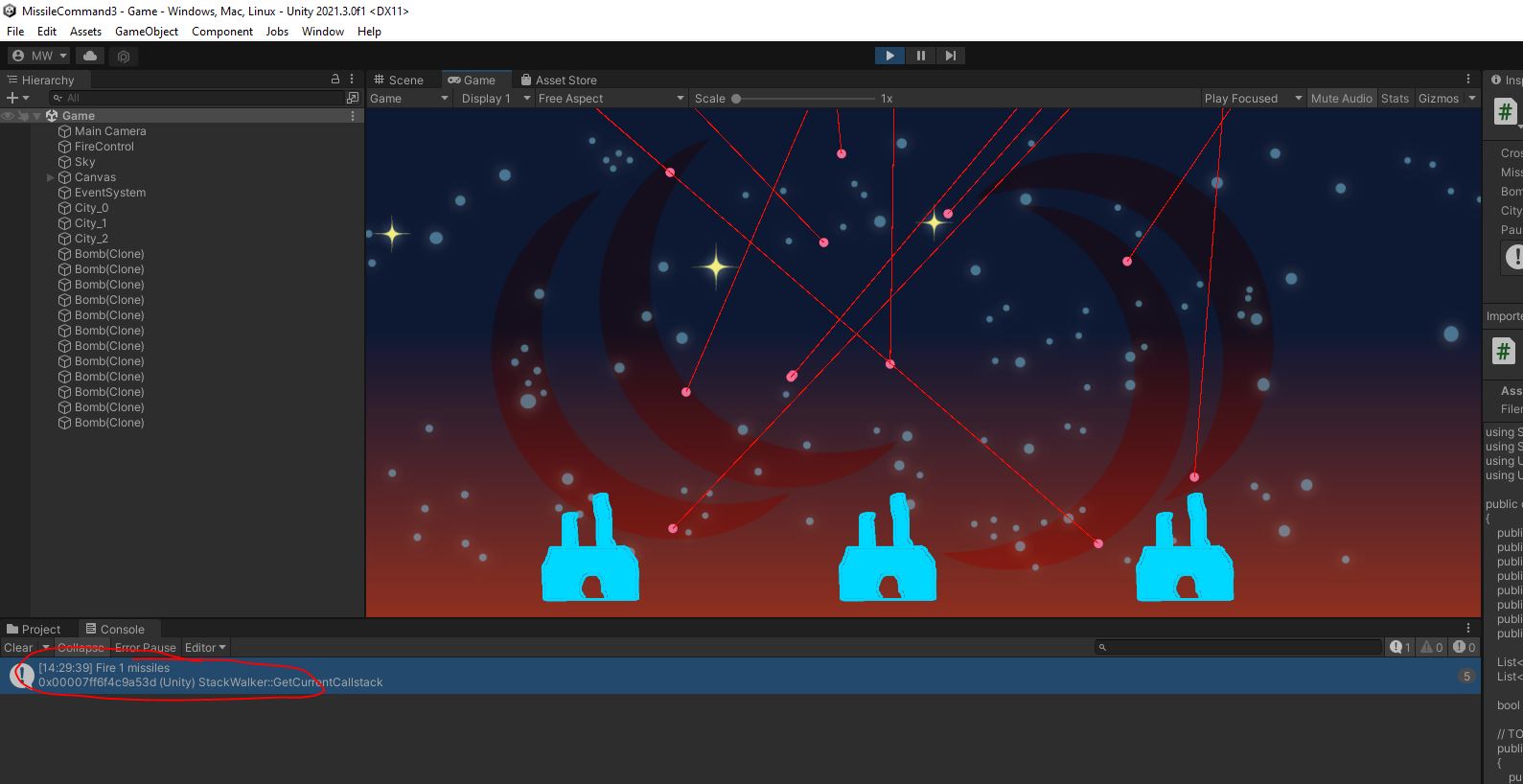
Debug.Logto output a log whenever the user fires a missile.
Play in Editor
Whenever you release the mouse button, you should see your log message.
Fire Missiles
Back in Update(), let’s fire some missiles.
- For every fire command in your MissileInput
- Call
FireMissile() - Pass in the world position of the fire input
- Call
Play in Editor
You should be able to fire the missiles now.
Missiles fly to your target position and explode there.
The explosions should destroy incoming bombs.
At this point, the explosion sprites stay an screen forever. 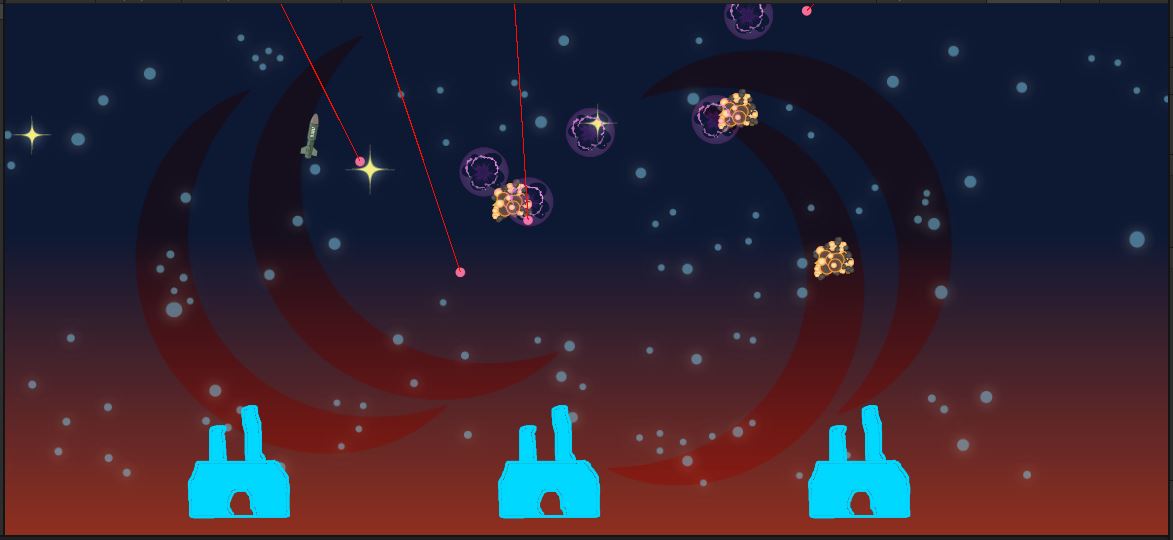
Aiming Reticles
The FireControl class has a member called m_targets.
This is the list of all the current aiming reticles.
For now, it’s just an empty list.
Head back to the Update() function.
- Make sure the list
m_targetshas the same number of entries as your MissileInput has aiming positions- Create new targets like this:
GameObject cross = Instantiate(m_crossHair); - Add the new targets to
m_targets - If there are any extra items in
m_targets,Destroy()them and remove them fromm_targets
- Create new targets like this:
- Update the location of each of the
m_targetsto match the position in your MissileInput class
At this point, there is only 1 mouse, so there is a maximum of 1 aiming reticle.
The plan is to extend this to handle multi-touch. That’s why we have a list of these.
It would be wise to set it up now to easily handle multiple targets once we add them.
Play in Editor
You should be able to drag a single aiming reticle around with your mouse.
The aiming reticle should vanish when you release the mouse button to fire a missile.
I suggest a commit and push if you haven’t recently.
Touch Input
Now that mouse emulation works, let’s enable the touch-screen.
Head down to ReadInput().
- Read in all the touch inputs like so
Touch[] touches = Input.touches; - Go through the array of
touchesand separate them into aiming or firing commands based on thephaseof the TouchTouchPhase.Endedis for finger release (fire command)Began,Moved, andStationaryare for aiming commands- The screen coordinates of the touch can be found in the
positionmember of Touch - Don’t forget to convert that to world coordinates with
Utility.ScreenToWorldPos()
To test it out, we need to deploy it to the phone.
Plug in your phone.
Build and deploy to your phone.
Check that a single finger successfully aims and fires a missile.
Check that multiple fingers control multiple aiming reticles.
Check that all aiming reticles vanish and missiles fire when you release your fingers from the screen.
When you touch the screen with multiple fingers, you may notice an extra reticle in between them. We’ll fix that next.
The mouse input is automatically replicated for touch. This makes it easy to develop for single-touch games.
- Fix it so that you do not get an extra aiming reticle when you touch the screen
- The mouse input must still work when playing on the PC
- You may use
Application.isMobilePlatformor the count ofInput.touchesfor this
It’s definitely time to commit and push.