Bendy Shader
Now let’s hit the bendy part.
To bend objects, we need to move their vertices.
That means we must operate in the Vertex Shader.
First, let’s take a closer look at the text version.
        void vert(inout appdata_full v)
        {
            float4 pos = mul(UNITY_MATRIX_MV, v.vertex);
            float zSq = 0.01 * pos.z * pos.z;
            pos.x += _BendyX * zSq;
            pos.y += _BendyY * zSq;
            v.vertex = mul(pos, UNITY_MATRIX_IT_MV);
        }
The first line
float4 pos = mul(UNITY_MATRIX_MV, v.vertex);
That’s a matrix multiply. A matrix called UNITY_MATRIX_MV is multiplied times the input vertex position v.vertex.
The UNITY_MATRIX_MV matrix transforms from Model Space (also called Object Space) into View Space.
In View Space, the forward direction is Z. This means pos.z is the distance from the camera.
The second line
float zSq = 0.01 * pos.z * pos.z;
squares the distance and multiplies that by a constant 0.01. The next 2 lines
pos.x += _BendyX * zSq;
pos.y += _BendyY * zSq;
Bends the position in the X and Y direction based on how far from the camera the vertex is.
The last line
v.vertex = mul(pos, UNITY_MATRIX_IT_MV);
puts the position back into Model Space (aka Object Space).
This is not actually a Vertex Shader.
Unity gives us this surface shader which is really a piece inserted in the front of their standard Vertex Shader.
Shader Graph
Let’s translate that in the Shader Graph.
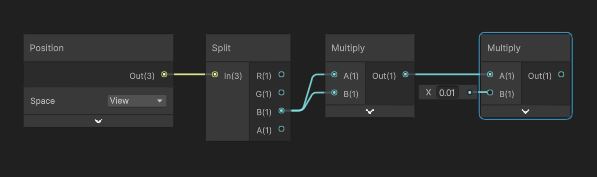
Z-Squared
- Shader Graph makes the View Space position available
- Add a “Position” node and select “View” space
- Use a “Split” node to extract the Z coordinate (Labeled “B”)
- Use a “Multiply” node to square the View Space z
- And one more “Multiply” node to multiply by 0.01
BendyX and BendyY
The next thing in the text version is to multiply by BendyX and BendyY.
- Create 2 float parameters called “_BendyX” and “_BendyY”
- Set their default values to 1
- By default, parameters should come in as “Per-Material”. Set them to “Global”
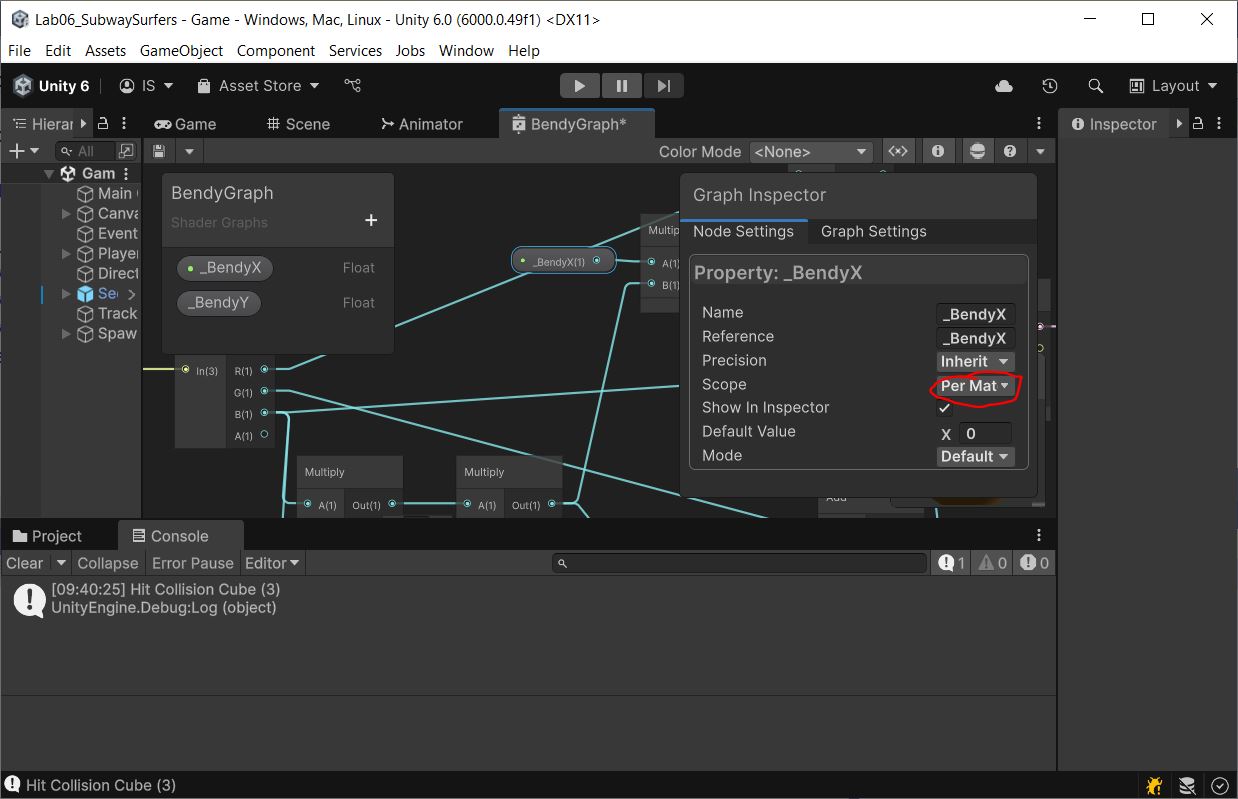
“_BendyX” and “_BendyY” are global parameters.
That means these are not set separately for each material, but are shared by all materials that use this shader.
- Drag “_BendyX” and “_Bendy” into your graph
- Use “Multiply” and “Add” nodes to perform this math
pos.x += _BendyX * zSq; pos.y += _BendyY * zSq; - Remember that
posis the view-space position
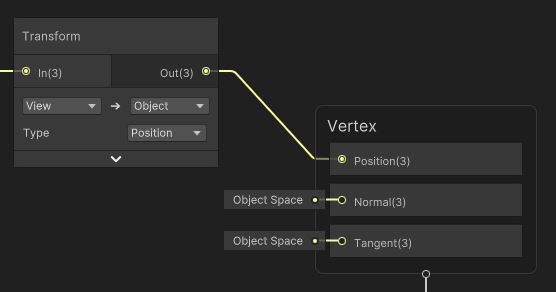
Transform back to Model/Object Space
- Use a “Transform” node to transform the resulting
posfrom View Space into Object Space (aka Model Space) - Feed that into “Position” input on the “Vertex”
In the play mode, you should see that everything seems to work.
Select the TrackController object and adjust the BendyX and BendyY values so see the track bend.
The left-hand lane is free of obstacles, so you can adjust the parameters withing running into anything. 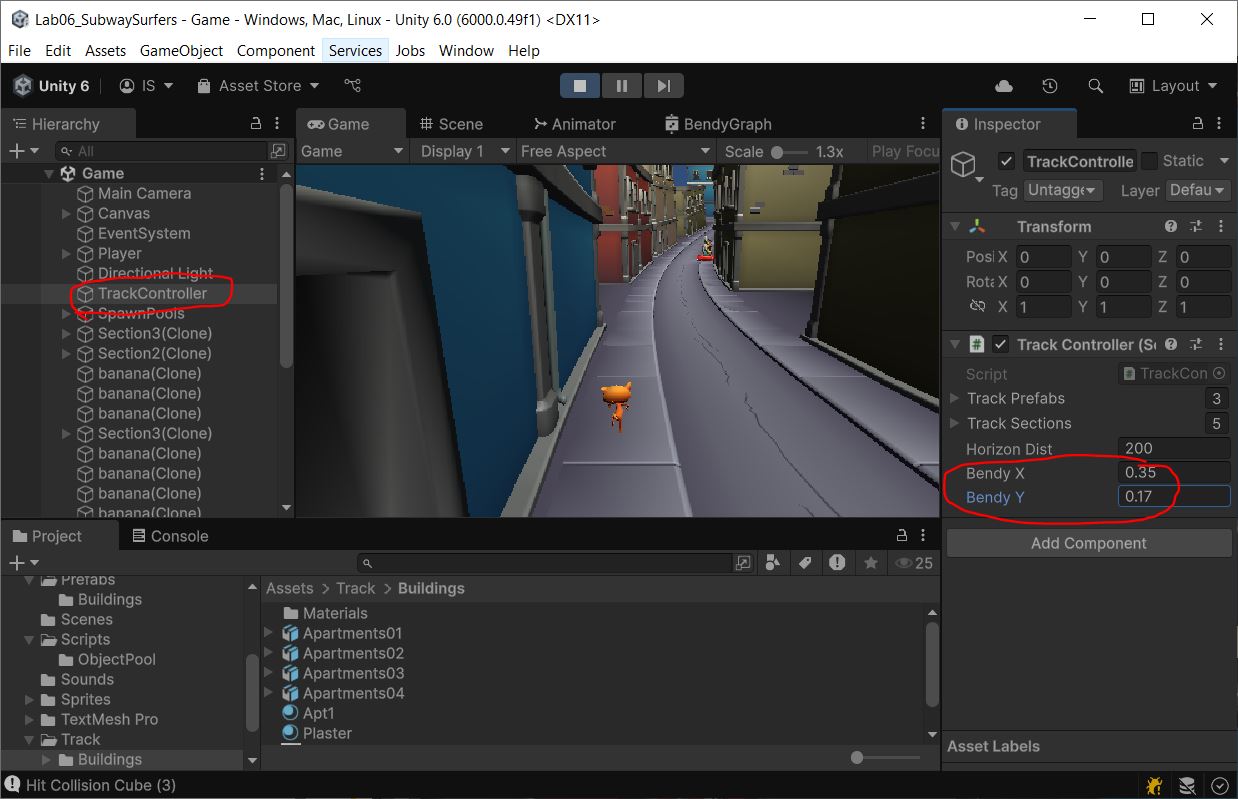
Put the 0.01 constant back.
Then commit and push before we go on