Empty Scene
Open the “Assets/Scenes/Empty.unity” scene.
You will see a collection of objects on the right hand side. 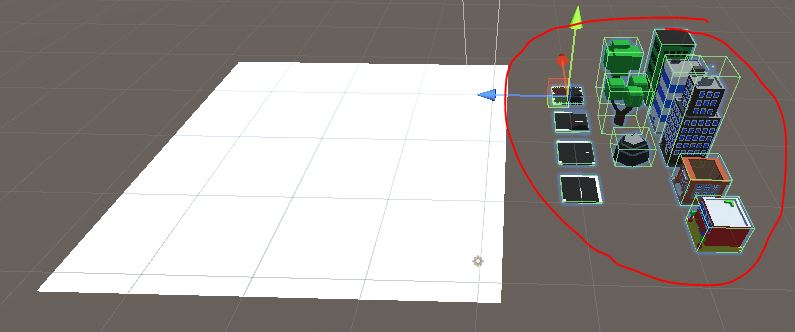 Select one of those objects, and you’ll see it has the Prototype component on it.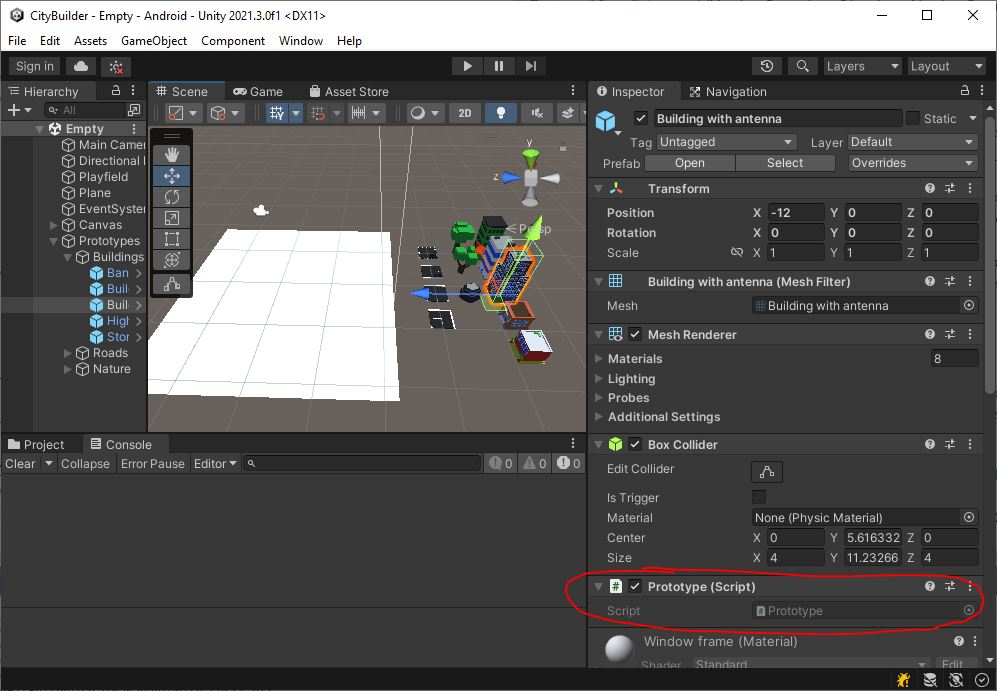
Prototype.cs
public class Prototype : MonoBehaviour
    // TODO add IPointerClickHandler
{
    Playfield m_playfield;

    void Start()
    {
        m_playfield = Playfield.Get();
    }

    public GameObject MakeOne()
    {
        GameObject newObj = null;

        {   // TODO Instantiate a copy of this GameObject
            // Remove the Prototype component from the copy (Destroy() the component)
            // Add a Dragable component to the copy
            // Add the copy to the Playfield with Playfield.AddObject()
        }

        return newObj;
    }

    // TODO implement OnPointerClick(PointerEventData eventData)
    // Use Playfield.FindOpenSlot() to see whether there is room to add an object or not
    // If there is room, call MakeOne() to make an object
    // And select the new object with Playfield.SelectObject()
}
MakeOne
In function MakeOne() there is a TODO
Instantiate()a copy of this GameObject- Remove the Prototype component from the copy (
Destroy()the component) - Add a Dragable component to the copy
- Add the copy to the Playfield with
Playfield.AddObject()
On Touch/Click
There’s a TODO at the top, and another one at the end for this.
- Inherit from IPointerClickHandler
- Implement OnPointerClick(PointerEventData eventData)
- Use
Playfield.FindOpenSlot()to see whether there is room to add an object or not - If there is room, call
MakeOne()to make an object - And select the new object with
Playfield.SelectObject()
- Use
You should be able to create objects and move them around the scene. 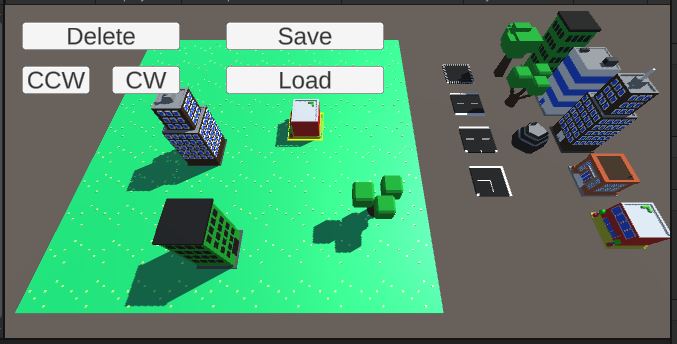
With that all working, let’s get to the Save/Load part.
Better commit and push first.