Assets
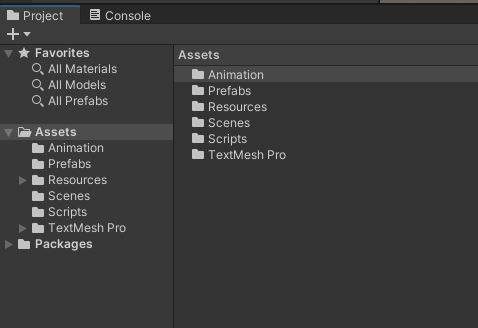
In the Project tab, let’s look at the Asset hierarchy. This is a fairly typical style of organization where we have folders for each type of asset.
Card Sprites
Let’s find the cards.
There is no “Sprites” folder. Instead, look in the “Resources” folder. In there, you will find the “Resources/PlayingCards” subfolder.
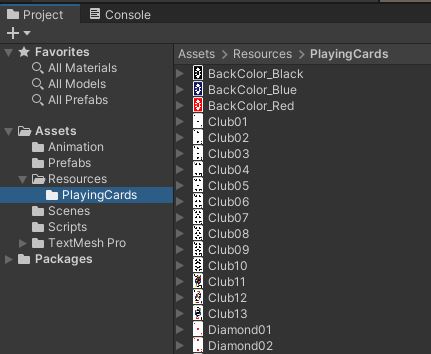
Since there are over 50 images in this folder, it’s much easier to load these images using code.
If we want to load an asset, we should put it into the Resources folder.
We can only load files from a “Resources” or “StreamingAssets” folder.
Scripting
There are 4 cs files (classes) in the “Scripts” folder.
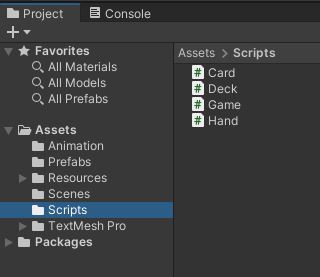
Card is an individual card. This is the symbolic representation as well as the graphical sprite for the card.
Deck is the deck of unused cards. We will draw a card from the deck to place it into the player’s Hand.
Game is a manager to run the flow of the game.
Hand is an individual player’s hand (including the dealer). This is a collection of Cards.
Game.cs
Open up Game.cs and let’s take a look.
Variables
Let’s start with the variables. I’ve placed those at the top.
public class Game : MonoBehaviour
{
    public Hand m_playerHand;
    public TextMeshProUGUI m_playerScore;
    public Hand m_dealerHand;
    public TextMeshProUGUI m_dealerScore;
    public Deck m_deck;
    public GameObject m_hitButton;
    public GameObject m_stayButton;
    public GameObject m_win;
    public GameObject m_lose;
    public GameObject m_playAgain;

    int m_scorePlayer = 0;
    int m_scoreDealer = 0;
Those ‘public’ variables are automatically exposed in the Unity Editor.
We use ‘public’ variables to expose things in the Unity Editor.
I have used these public variables to hook up all the various parts of the game such as the “Hit” button, the Player’s Hand, and the Deck.
I use a convention where I put “m_” in the front of member variables.
The “m” stands for “member”, and it serves to remind me (and you) that the variable in question is a member of the class (as opposed to a local variable in the function).
Game Flow
The Start() function kicks things off with a coroutine. We’ll talk more about those later.
StartCoroutine(DelayedDeal());
    IEnumerator DelayedDeal()
    {
        yield return new WaitForSecondsRealtime(0.1f);
        Deal();
    }

    void Deal()
    {
        // deal 2 cards to the player
        m_playerHand.AddCard(m_deck.GetCard(), true);
        m_playerHand.AddCard(m_deck.GetCard(), true);
        UpdatePlayerScore();

        // deal 2 cards to the dealer
        m_dealerHand.AddCard(m_deck.GetCard(), true);
        m_dealerHand.AddCard(m_deck.GetCard(), false);
        UpdateDealerScore();
    }
Simply put, we wait for 0.1 seconds and then call Deal().
The Deal() function puts 2 cards into the player’s Hand and 2 cards into the dealer’s Hand.
Then, it just waits. Wait’s for what?
It is now the player’s turn to take an action. The player may either “Hit” or “Stay”. There are functions set up for those actions:
    public void PlayerHit()
    {
        m_playerHand.AddCard(m_deck.GetCard(), true);
        int score = UpdatePlayerScore();
        if (score > 21)
            PlayerStay();
    }

    public void PlayerStay()
    {
        m_hitButton.SetActive(false);   // disable the "Hit" button
        m_stayButton.SetActive(false);   // disable the "Stay" button too
        m_dealerHand.RevealAll();
        m_dealerScore.transform.parent.gameObject.SetActive(true);
        StartCoroutine(DealerTurn());
    }
This leaves us with the question, “How are these functions going to get called?”
Look at the Scene
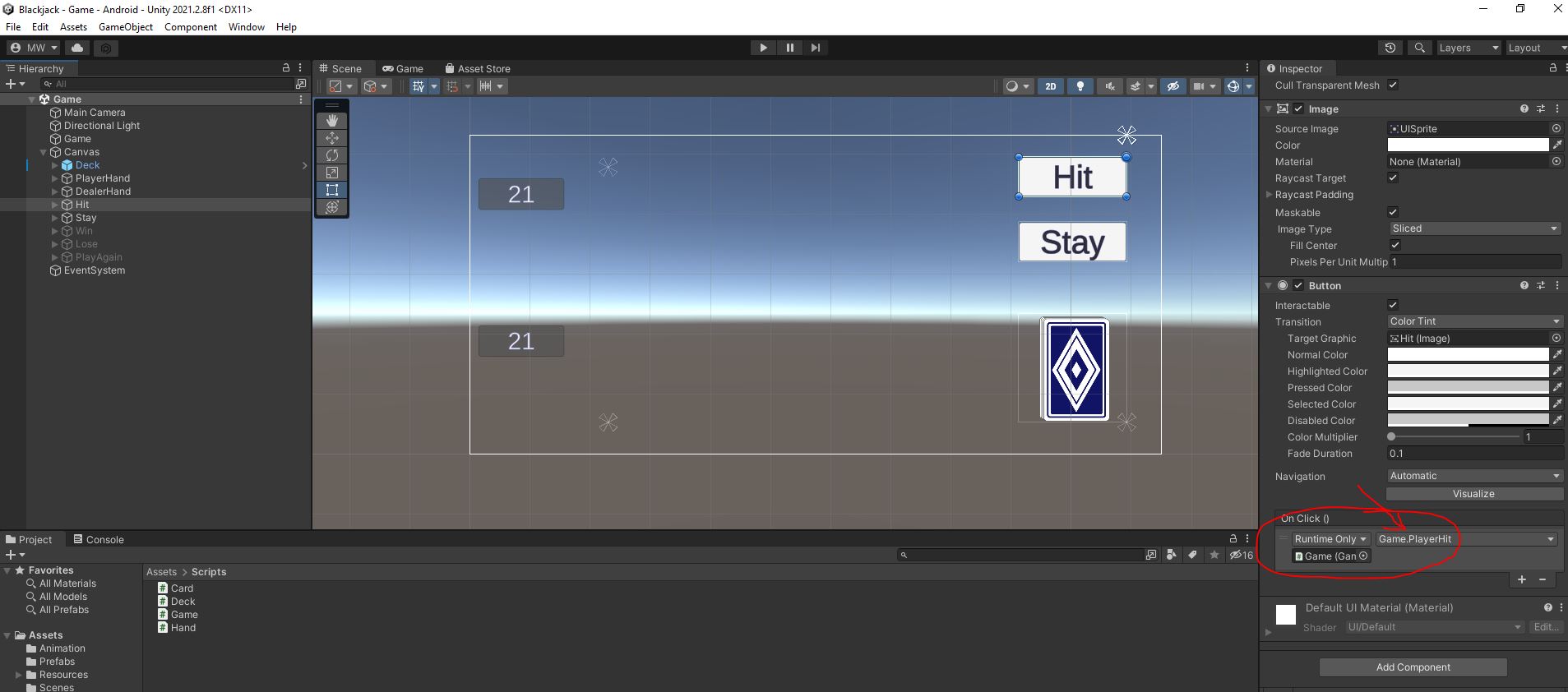
Select the “Hit” button.
Scroll down a bit in the “Inspector” tab to find the “On Click” section of the “Button” component.
This is how we have hooked that up. The “Hit” button is set to call “PlayerHit” when clicked.
The “Stay” button is set up in the same way.
Check Out the Deck
Lets look at Deck.cs
    // Start is called before the first frame update
    void Start()
    {
        m_cards = new List<Card>();
        // fill the deck with cards
        for (int suit = 0; suit < 4; ++suit)
        {
            for (int rank = 1; rank <= 13; ++rank)
            {
                CreateCard((Card.Suit)suit, rank);
            }
        }
#if false
        {   // don't forget the jokers
            CreateCard(Card.Suit.none, 0);
            CreateCard(Card.Suit.none, 1);
        }
#endif
        Shuffle();
    }

    GameObject CreateCard(Card.Suit suit, int rank)
    {
        GameObject cardObject = Instantiate(m_cardPrefab, transform);
        Card card = cardObject.GetComponent<Card>();
        card.Initialize(suit, rank);
        m_cards.Add(card);
        cardObject.SetActive(false);
        return cardObject;
    }
We use a nested for loop to create all the cards… 4 suits with 13 cards per suit.
At the end of the function, we call ‘Shuffle()’. You’ll be implementing that function later… for now, it does nothing.
Notice the #if false. That disables the enclosed block of code meaning that we will not be including those 2 jokers.
The CreateCard() function instantiates a copy of the prefab m_cardPrefab.
It calls Initialize() on it,
adds the new card to the list m_cards,
sets the new GameObject to be inactive,
and finally returns the new GameObject.