QuizGame.ReadAngle()
In the class QuizGame, look for the TODO in the ReadAngle() function.
    float ReadAngle()
    {
        float ang = 0.0f;
        {   // TODO read the accelerometer, and turn that into an angle
        }
        return ang;
    }
- Read the direction of the gravity vector with
Input.acceleration- Watch out for that vector coming back as
(0, 0, 0) - That could happen if there is no accelerometer (like it’s on a PC)
- Watch out for that vector coming back as
- We’ll be holding the phone sideways and tilting it face-down, so we’re looking for gravity to point down the Z axis when tilted
- Use the gravity vector to calculate an angle with
Mathf.Asin()Mathf.Asin()returns radians, so useMathf.Rad2Degto convert it to degrees
QuizGame.Update()
We would like to test our ReadAngle() function, but we haven’t set up the game yet.
To test it, add a new function
void Update()
{
    // TODO your code here
}
- In
QuizGame.Update(), callReadAngle()and setm_text.textequal to the result. - You can use
.ToString()on a float to convert from the float to a string.
The game should now display the angle of the phone.
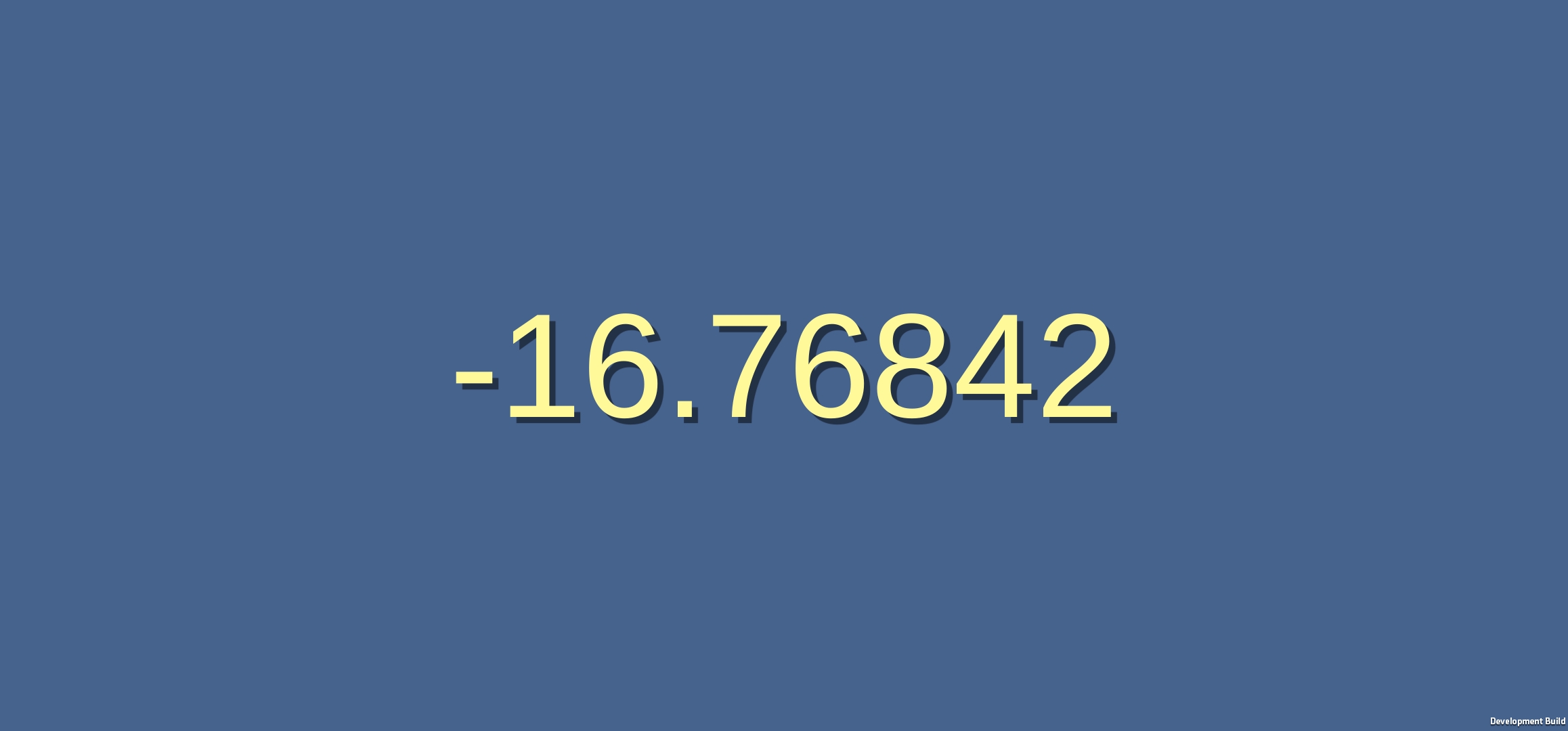 It should show 0 degrees when held facing out (as if it’s on your head).
It should show positive when facing down and negative when facing up.
If you try it on a PC, you have no accelerometer, so you’ll just get 0 degrees.
You won’t be able to test out your ReadAngle() function without a phone.
QuizGame.ReadInput()
Now let’s fill in the TODO in the ReadInput() function
    QuizInput ReadInput()
    {
        QuizInput quizInput = new QuizInput();
        {   // TODO use ReadAngle and input.GetKey() to fill in quizInput
        }
        return quizInput;
    }
- If the angle is greater than
m_tiltAng, that means the phone is facing down- set
quizInput.downto true - if not, make sure
quizInput.downis false
- set
- If the angle is less than
-m_tiltAng, that means the phone is facing up- set
quizInput.upto true - if not, make sure
quizInput.upis false
- set
- If the angle is between
-m_resetAngandm_resetAng, that means the phone is centered- set
quizInput.centerto true - if not, make sure
quizInput.centeris false
- set
You will notice that there’s a gap between m_tiltAng and m_resetAng.
We call this “hysteresis”.
This helps prevent the phone from bouncing in and out of the up/down/center states due to tiny vibrations.
Debugging everything on the phone can be a little tedious.
Let’s set up a way to provide input when running on the PC.
- If the user presses the up arrow key
Input.GetKey(KeyCode.UpArrow), setquizInput.upto true- be sure
quizInput.centeris false
- be sure
- If the user presses the down arrow key
Input.GetKey(KeyCode.DownArrow), setquizInput.downto true- be sure
quizInput.centeris false
- be sure
- If neither is pressed, set
quizInput.centerto true- make sure the keyboard behavior does not override the accelerometer behavior when centering
QuizGame.Update()
Let’s test out our input function.
- Take out your
ReadAngle()test in theUpdate()function. - Replace it with a call to
ReadInput(). - You’ll need to get a little creative to display the 3 states
up,down, andcenterat the same time. - Keep in mind that we’re testing out the code… if there’s a bug, it may be possible for the variables to be incorrectly set to up, down, and center at the same time.
Try it out.
 Make a few iterations until you get it all working right.
Remove QuizGame.Update()
Now that we’re done with the testing, don’t forget to disable your Update() function.
It might be smart to keep it around commented out in case you need to debug it later.
But for now, make sure it doesn’t interfere with the rest of the game.