Bomb
In the “Prefabs” folder, you will find “Bomb.prefab”.
If you look at it, you’ll see it has a few components on it including a SpriteRenderer with this image on it:

You might also notice it has a LineRenderer, a Bomb script, and a CircleCollider2D.
We will be talking about Colliders and Collision Detection next week.
For this week, I have set it up for you.
I don’t have plans to specifically cover LineRenderer in class, but they are often useful.
I suggest you use this as an example to refer to when you need to learn about them.
- In the Game Scene, find the
GameObjectnamed “FireControl” - That object has a
FireControlscript on it - Drag your “Bomb” prefab into the “Bomb” slot of
FireControl- If you look in the code, you’ll see that is the variable
m_bomb - Unity automatically converts “m_bomb” into “Bomb” for a more designer-friendly display
- If you look in the code, you’ll see that is the variable
- Save the Scene
Targeting Crosshair
In the “Sprites” folder, you will find Missile_Crosshairs.png.

- Drag that into the scene to create a
GameObjectwith aSpriteRendereron it - Drag that new
GameObjectinto the “Prefabs” folder to create a prefab
For more information about prefabs, check out this supplementary video: Prefabs
- Delete the
GameObject“Missile_Crosshairs” from your scene- We don’t want a crosshair in the scene to start off. This will be created as needed when the user touches the screen.
- Your “FireControl” object has a slot on it for “Cross Hair”. Drag your new prefab into this slot
- If you look in the code, you’ll see that is the variable
m_crossHair - Unity automatically converts “m_crossHair” into “Cross Hair” for display
- If you look in the code, you’ll see that is the variable
- Save your scene
It’s not a bad idea to commit (and maybe even push) your project.
We haven’t done much, but it’s wise to commit small changes at a time.
You will need to add your new prefab and the meta file that goes with it.
Explosions
Create a new prefab for the missile explosion
- Drag the Sprite “Sprites\Explosion\Sprites\Explotion0008.png” into the scene to create a
GameObjectwith aSpriteRendereron it
- Rename the
GameObject“Explosion” - Add the script
MissileExplosionto it - Drag your new
GameObject“Explosion” into the “Prefabs” folder to create a prefab - Delete the
GameObjectfrom your scene
Create a new prefab for the bomb explosion
- Make a prefab called “BombExplosion” using Sprite “Sprites\BombExplosion\Sprites\Explotion0009.png”

- Open the “Bomb”
prefab - The
Bombclass has a field on it calledm_explosion. Fill that in with your “BombExplosion” prefab
- Open the “Bomb”
Create a new prefab for the city explosion
- Make a prefab called “CityExplosion” using Sprite “Sprites\CityExplosion\Flame0009.png”
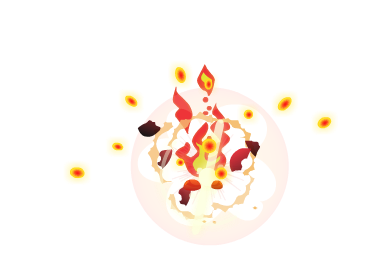
Missile
Create a new prefab for the Sprite “Sprites\Missile_small\Missile.png”.

- Drag that into the scene to create a
GameObjectwith aSpriteRendereron it - Add the script
Missileto it - The
Missilescript has a fieldm_explosion. Fill that in with your prefab “Explosion” - Drag your new
GameObject“Missile” into the “Prefabs” folder to create a prefab - Delete the
GameObjectfrom your scene - Your “FireControl” object has a slot on it for “Missile”. Drag your new prefab into this slot
- Save your scene
City
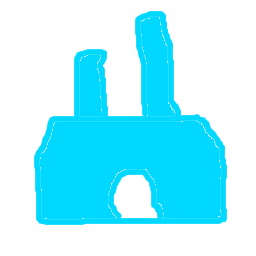
Programmer art detected
- Drag Sprite “Sprites/City/CityA.png” into the scene to create a
GameObjectwith aSpriteRendereron it - Name it “City”
- Add the script
Cityto it Cityhas a slotm_explosionon it. Put prefab “CityExplosion” in there- Drag that new “City”
GameObjectinto the “Prefabs” folder to create a prefab - Delete the
GameObjectfrom your scene - Your “FireControl” object has a slot on it for “City”. Drag your new prefab into this slot
- Save your scene
Play in Editor.
The bombs come down leaving their trails behind.
When they hit the cities, the “CityExplosion” sprite appears.
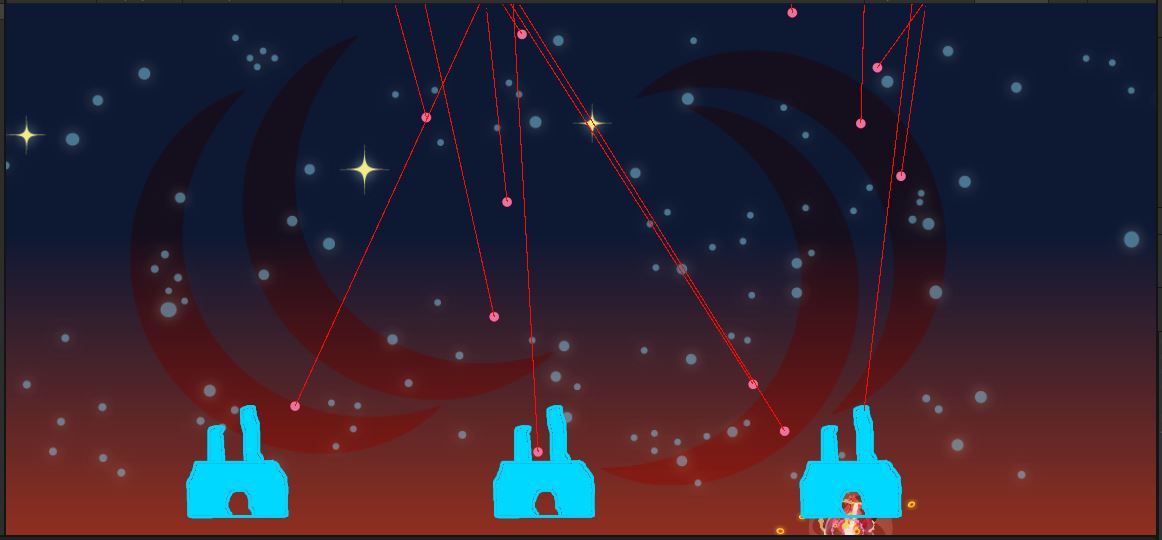 We don’t have any input control yet, so there’s nothing you can do about it.
It’s definitely time to commit and push.